Full Access Guide
Welcome to your membership
Learn how to use everything you have unlocked with your Full Access Membership. Find how to access your downloads, license information, tutorials and answers to common questions.
Average Setup Time: 5-10 Minutes
Install your collection
Getting Started With Full Access
Follow the four steps to connect your Full Access library and start building with your included blocks and layouts.
Quick Tip
Can’t find your license key?
Your license key is available anytime from your Hello You Designs account under License Manager. You can also deactivate old websites if you need to move your license.
After completing your purchase, you’ll receive an email containing your license key. If you don’t see it in your inbox, be sure to check your spam or junk folder.
You can also access your license key at any time by logging into your Hello You Designs account and viewing your purchase. Once you’ve located your key, copy it—you’ll need it during the installation process.
You can view your active sites, deactivate licenses, and manage your activation’s anytime from your Hello You Designs account.


Log in to your WordPress website and open any page or post in the editor.
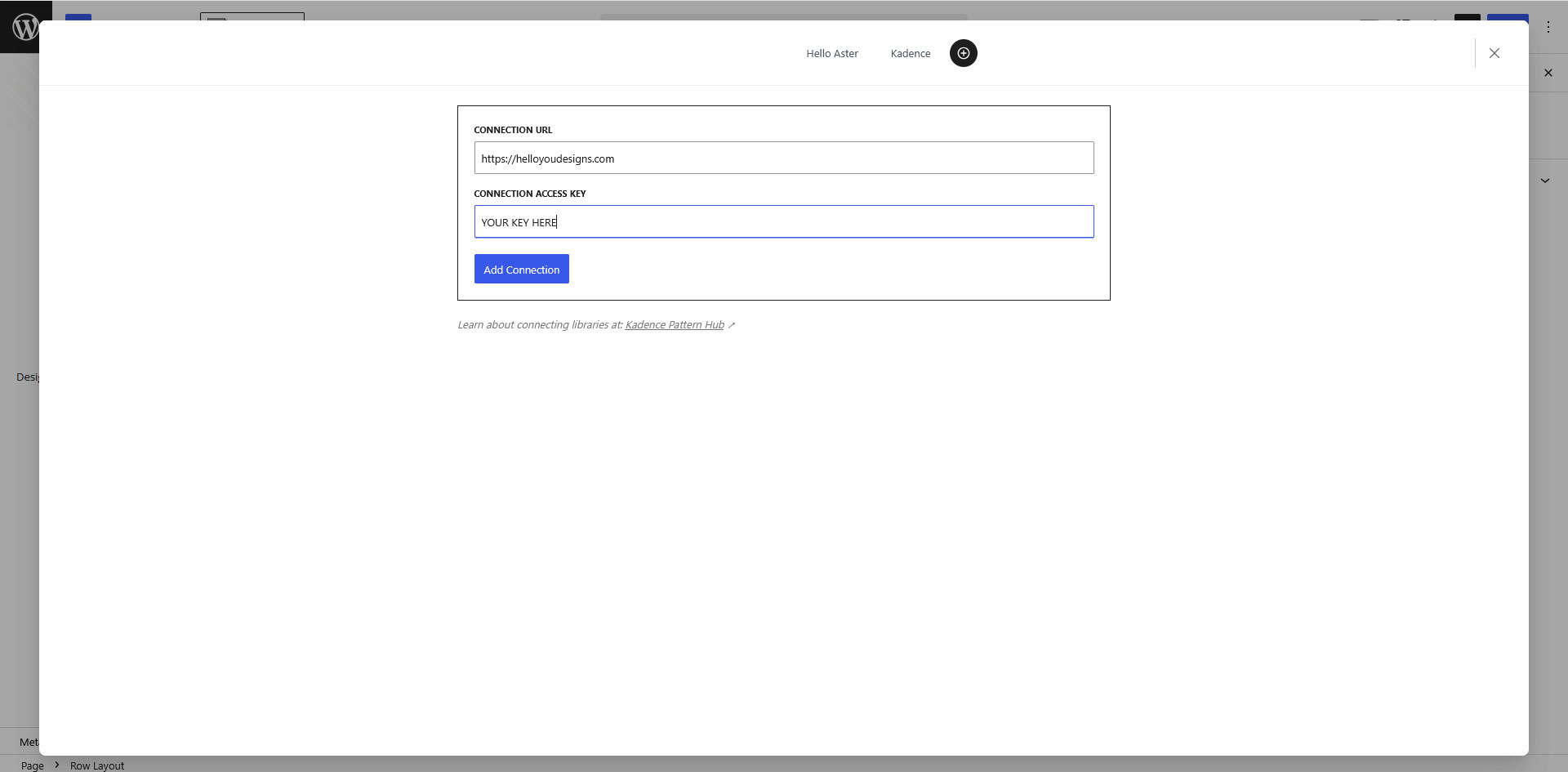
Open the Design Library from the top-left corner of the editor. Then click the + icon in the upper-right corner to create a new connection.
Enter https://helloyoudesigns.com as the Connection URL, then paste your License Key into the Connection Access Key field. Click Add Connection.
Your Full Access library will now appear as a new tab inside the Design Library. You can immediately begin browsing and inserting blocks, layouts, and pages into your website.

VIDEO TUTORIAL
Learn to Use Your Block Library
Learn how to use your Block Library with confidence. This video covers browsing your library, adding blocks to your pages, editing content, moving sections, and customizing layouts to fit your website.

Still need help?
We’re happy to help! If you couldn’t find the answer you’re looking for, send us a support ticket and we’ll get back to you as soon as possible.