BLOCK COLLECTION SETUP

Getting Started with Your Block Collection

Whether you’ve purchased a Block Library, Funnel Collection, or Creator Collection, every collection installs and functions the same way.

Start by retrieving your license key, then follow the installation guide below. Once your collection is installed, browse the tutorials to learn how to insert layouts, customize sections, and make the collection your own.

Average Setup Time: 3 Minutes
Quick Start

Three Simple Steps

Everything you need to begin in three simple steps.
01.

Retrieve Your License Key

Retrieve your license key from your Hello You Designs account.

02.

Connect Your Library

Connect your collection using your license key.
03.

Start building

Browse your library and start building your pages.

Install your collection

Let’s Get You Set Up

Every collection installs the same way. Follow the steps below to connect your library to your website.

Quick Tip

Can’t find your license key?

Log in to your Hello You Designs account and open the License Manage section to copy your key or deactivate old activations.
After completing your purchase, you’ll receive an email containing your license key. If you don’t see it in your inbox, be sure to check your spam or junk folder.

You can also access your license key at any time by logging into your Hello You Designs account and viewing your purchase. Once you’ve located your key, copy it—you’ll need it during the installation process.

You can view your active sites, deactivate licenses, and manage your activation’s anytime from your Hello You Designs account.

Once you have your license key, you’re ready to connect your Block, Funnel, or Creator Collection to your website.

step 1

Log in to your WordPress website.

step 2

Edit an existing page or post, or create a new one.

step 3

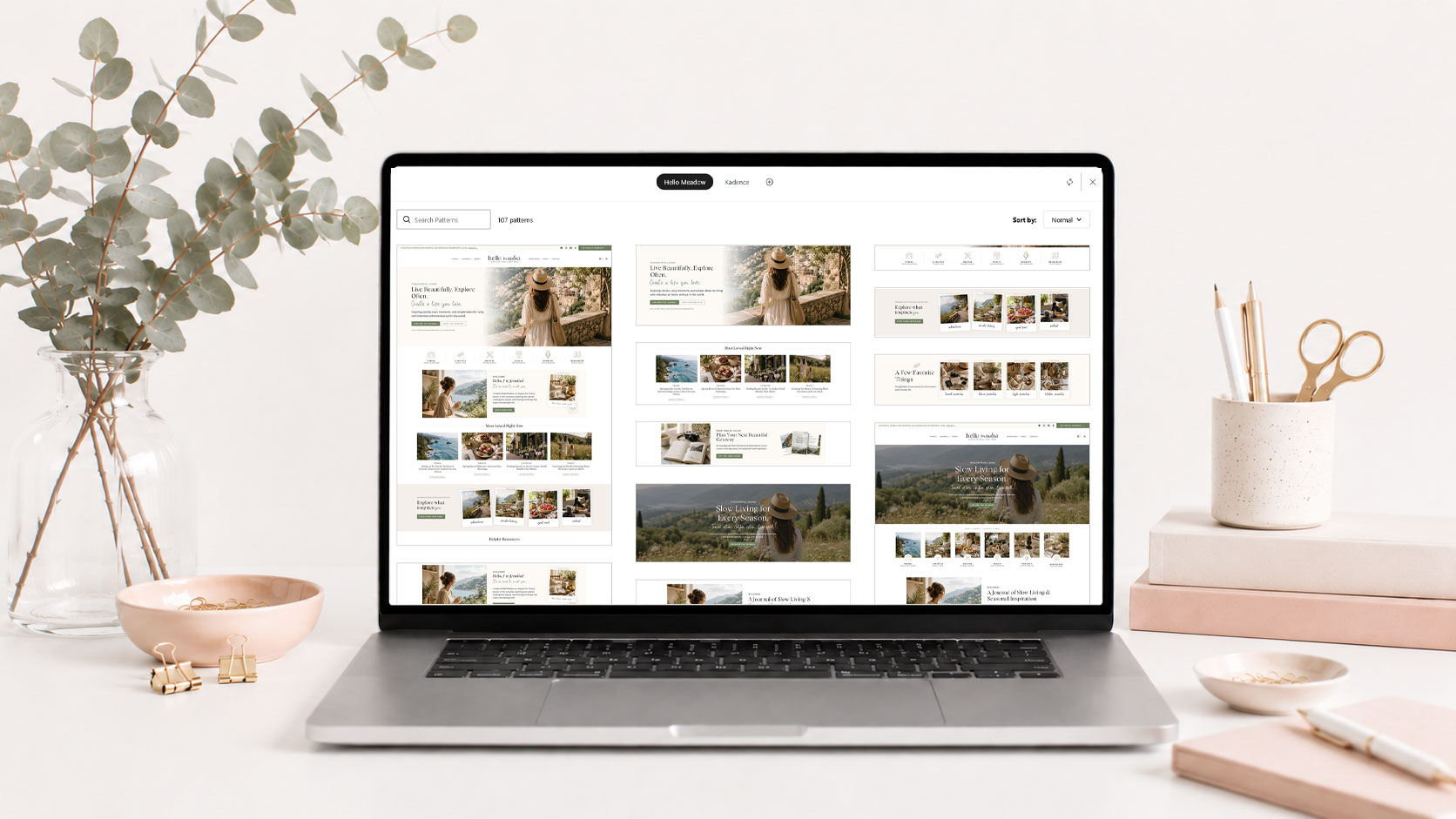
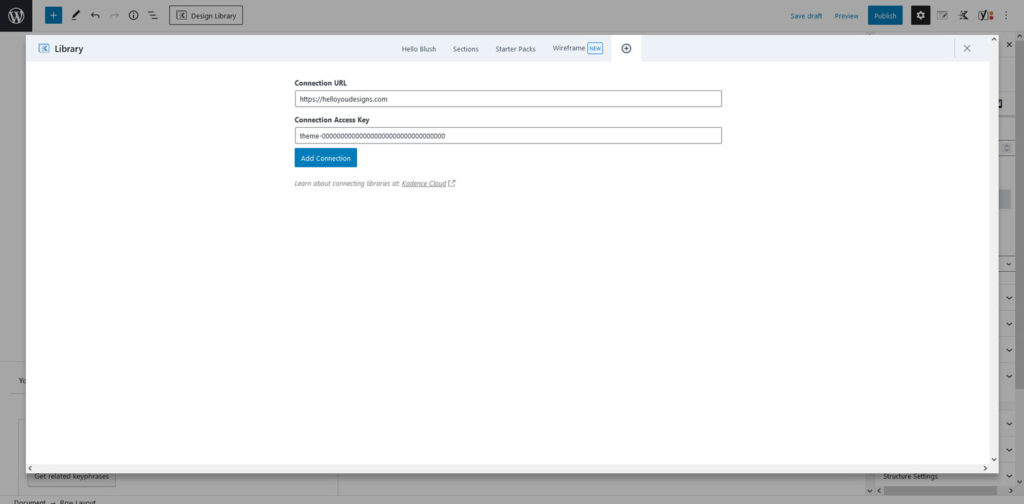
Click Design Library in the top-left corner of the editor. When the Design Library opens, click the + icon in the upper-right corner to add a new connection.

step 4

Enter the following information: Connection URL

https://helloyoudesigns.com

Connection Access Key
Paste the license key you copied from your Hello You Designs account.

Click Add Connection.

step 5

Your collection will now appear as a new tab alongside your theme library. You can begin browsing and inserting blocks, pages, and layouts directly into your website.
Some Block Library, Funnel Collection, and Creator Collection purchases include an Additional Styling ZIP file. If your download includes this file, you’ll need to complete one final step before using your collection.

Inside the ZIP file is a CSS file that adds the custom styling used by certain layouts. Without it, some sections may not display exactly as shown in the demo.

Note: Not every collection includes an Additional Styling file. If you don’t see one in your download, you can safely skip this step.

step 1

Download and unzip the Additional Styling file included with your purchase.

step 2

Open the CSS file and copy all of the code.

step 3

Open the CSS file and copy all of the code.

step 4

Paste the code into the Additional CSS panel and click Publish to save your changes.

You can manage your Hello You Designs license keys anytime from your account area.

If you need to move your license to a different website, simply deactivate it here before activating it on your new site.

step 1

Log in to your account at HelloYouDesigns.com.

step 2

Click License Manage from the account menu.

Here you can:
  • View your active license keys.
  • See which websites each key is assigned to.
  • Deactivate a license to free up an activation.
  • Generate a new license key (when available).
VIDEO TUTORIAL

Learn to Use Your Block Library

Learn how to use your Block Library with confidence. This video covers browsing your library, adding blocks to your pages, editing content, moving sections, and customizing layouts to fit your website.

Next Steps

Continue Learning

Now that your site is installed, explore these resources to customize, learn and grow.

Theme Guides

Learn how to customize your theme and make it your own.

browse guides →

Tutorials

Step-by-step tutorials to hep you build with confidence.

View tutorials →

Block Libraries

Add Beautiful sections and pages with one-click

Explore Libraries →

Troubleshoot

Find answers to common questions and solutions.

Get Help →

Get Support

Our support team is here when you need us.

Submit a ticket →
Frequently Asked Questions

Have questions about the block libraries?

Find answers to the questions we hear most often during installation and setup.
Your activation limit depends on the collection you purchased. To view your available activations, log in to your Hello You Designs account and open License Manage. You’ll be able to see your activation limit, manage connected websites, and deactivate licenses whenever needed.

Removing your license key will disconnect the collection from your website, meaning you will no longer be able to access its layouts from the Design Library.

However, any blocks, pages, or layouts you’ve already added to your website will remain in place and continue to function normally. Removing the license key does not delete or change content that has already been inserted into your site.

If you reconnect your license key later, your collection will once again be available in the Design Library.

If you no longer have access to a website using your collection, simply log in to your Hello You Designs account and go to License Manage.

Locate the website you no longer wish to use the collection on and click Deactivate. This will free up the activation so you can use your license on another website.

No. Your Block, Funnel, or Creator Collection will automatically inherit the fonts and colors from your active WordPress theme.

This allows each collection to blend seamlessly with your existing website without requiring additional customization. The layouts, spacing, and styling remain the same, while the typography and color palette adapt to match your current theme.

If you’d like your collection to look more like the demo, simply update your theme’s fonts and Global Color Palette.

Support includes help with installing your collection, connecting your license, troubleshooting blocks, and answering general questions about how the collection works.

Support does not include customizations or design modifications, such as:

  • Changing image sizes or layouts
  • Editing text or demo content
  • Reordering or flipping sections
  • Changing colors, fonts, or spacing
  • Custom CSS or custom code requests
  • Building new layouts or modifying blocks beyond their included options

If you’re experiencing a bug or something isn’t working as expected, we’re happy to help. If you’re looking to customize a block to better fit your website, those changes fall outside the scope of support and we can provide a quote.

Your existing Theme Library will remain exactly as it is.

When you connect a Block, Funnel, or Creator Collection, it is added as a new library tab inside the Design Library. This means you’ll continue to have full access to your Theme Library, along with your newly connected collection.

You can switch between libraries at any time, giving you access to all of your layouts from one convenient location.

Each collection license includes a specific number of website activations. If you’ve reached your activation limit and need to use the collection on additional websites, you’ll need to purchase an additional license.

You can review your activation limit on the product page or in the License Manage section of your Hello You Designs account.

Not quite. While both products include beautifully designed layouts, they serve different purposes.

When you purchase a theme, you’re getting everything that makes that theme unique, including its header and footer, theme settings, color palette, typography, custom styling, and all of the built-in page layouts.

When you purchase a Block, Funnel, or Creator Collection, you’re purchasing the individual layouts and sections—not the theme itself. The collection is designed to work with your existing theme, automatically adopting its fonts, colors, and styling for a seamless look.

If you’d like the exact appearance shown in the demo, you’ll also need the matching Hello You Designs theme. If you’re looking to add professionally designed layouts to your current website, a collection is the perfect choice.

No. The blocks included with a Hello You Designs theme are part of that theme and require the theme to be active.

If you switch to a different WordPress theme, the theme-specific Design Library will no longer be available.

If you’d like to use those layouts with another theme, that’s exactly what our Block Library Collections are designed for. They provide the same professionally designed layouts in a standalone library that can be connected to compatible themes, allowing you to continue using your favorite sections even after changing themes.

Still need help?

We’re happy to help! If you couldn’t find the answer you’re looking for, send us a support ticket and we’ll get back to you as soon as possible.