Theme Documentation
Hello Beaches
Your go-to resource for everything about your theme. Find setup guides, customization tips, and answers to common questions.
Theme Overview
Here you will find the basics to run your theme like the demo. We have also included additional details like the fonts, and demo colors.
Plugins
* are required for theme function
Requirements
WordPress 6.3+
PHP 8.2+
Required Plugins x2
Colors
#C6EEE7
Palette 1
#FEE5E0
Palette 2
#ECD6F8
Palette 10
#222222
Palette 3
#757575
Palette 4
#F9A79B
Palette 5
#EEEEEE
Palette 6
#FEE5E0
Palette 7
#FEF9F7
Palette 8
#ffffff
Palette 9
Fonts
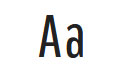
Pathway Gothic
Headings
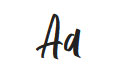
Little Jane
Accent

Poppins
Body
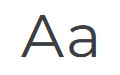
Montserrat
H5 · H6 · Buttons · Nav

Recommended
Image Guidelines
Upload images that match the aspect ratio of your layout for the best quality, performance, and responsive display.
Common Image Sizes
These are the image ratios you’ll see used throughout the demo.
1:1
Square
Perfect for categories, profile photos, & products
Recommended width:
Up to 1200px
16:9
Landscape
Ideal for hero sections, banners, and full-width images.
Recommended width:
Up to 1900px
3:4
Portrait
Perfect for featured images, blog posts, and post cards.
Recommended width:
Up to 1200px
Custom Code
Built-In Styling Options
Use these optional CSS Classes to add theme specific design details to your layouts. These classes are completely optional and can be used in the Additional CSS Class(es) field for any compatible element in the editor.
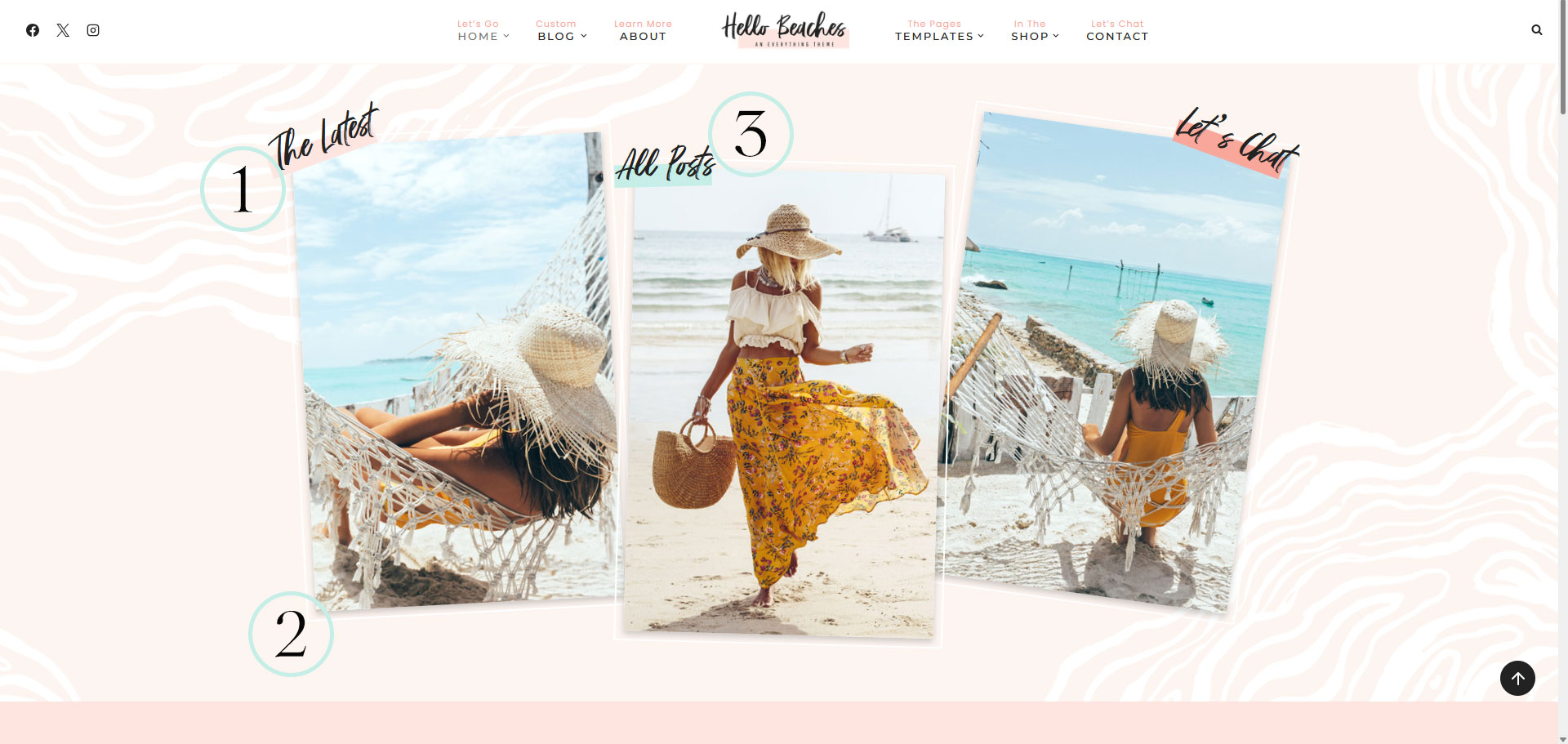
What it does
Angles a heading or text slightly left or right for a casual, handwritten look. This effect works best with short titles and accent text.
Example

How to use it
Add a Heading or Text block where you’d like the angled text to appear.
Set the text alignment (left or right), depending on where you’d like the title to sit.
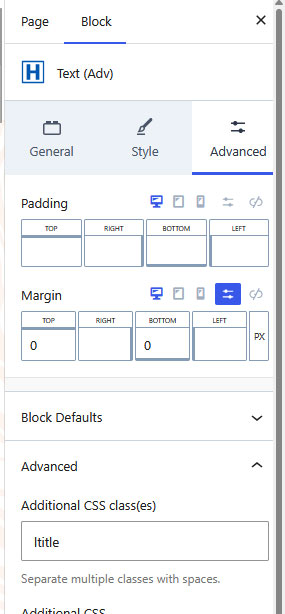
In the block settings, open the Advanced tab, and in the Additional CSS Class(es) field, add one of classes below
Save your page and preview it. If the title feels too large on mobile, adjust the mobile font size using the responsive controls in the editor.
QUICK TIP
This styling is designed for short headings only. Longer sentences/words can become difficult to read when angled.
CSS Classes
Choose one of the following classes to apply different tape styles. Click to copy.
ltitle — Angles the text to the left.
rtitle — Angles the text to the right.
Quick Tip
The heading with the colored block underneath uses an additional CSS class for the underline effect. If you’d like to recreate that style, follow the Underline Text tutorial included with this theme.
What it does
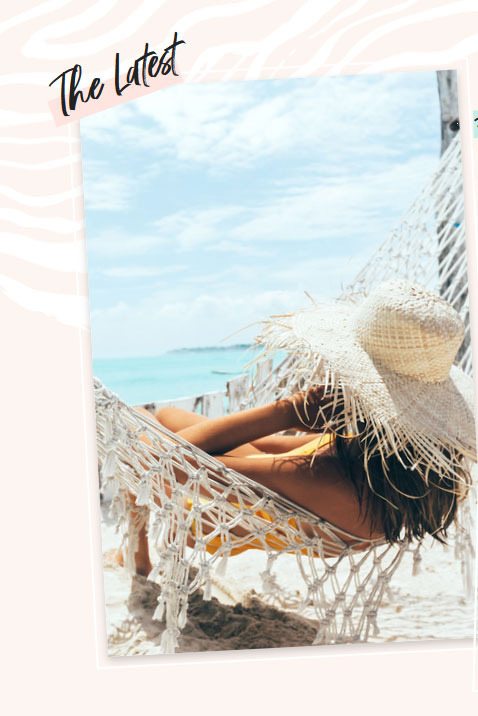
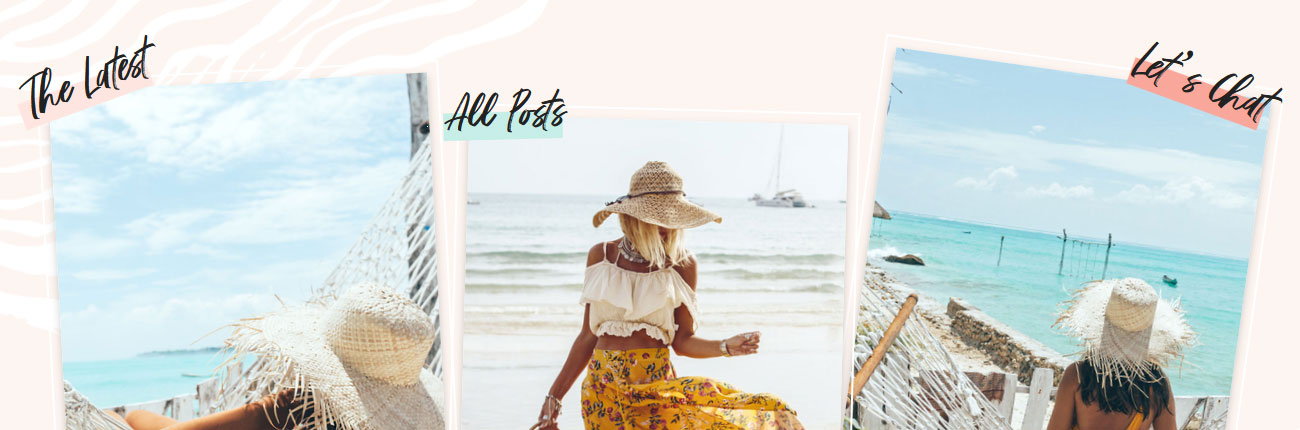
Adds one of the custom image borders used throughout the Hello Beaches demo. You can also use the standard Border settings in the editor if you don’t need these custom styles.
Example
How to use it
Add an Image or Advanced Gallery block and insert your image.
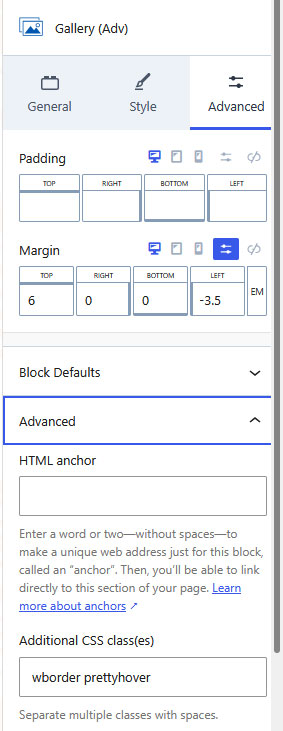
Select the image, then open the Advanced tab in the editor.
In the Additional CSS Class(es) field, add one of the following:
whtborder — Thin 2px offset white borderwborder — 15px white bordertborder — 10px white border
Save your page and preview it.
QUICK TIP
These custom borders work best on images with a background color or enough surrounding space so the border is visible. If you’re simply looking for a basic border, you can add one directly from the block’s Style settings without using any CSS.
CSS Classes
Choose one of the following classes to apply different tape styles. Click to copy.
Quick Tip
The border effects can be combined with Image Hover styles. Simply add both CSS classes to the Additional CSS Class(es) field, separated by a space.
What it does
Adds one of the decorative underlined title styles used throughout the Hello Beaches demo. The underline color is automatically pulled from your theme color palette.
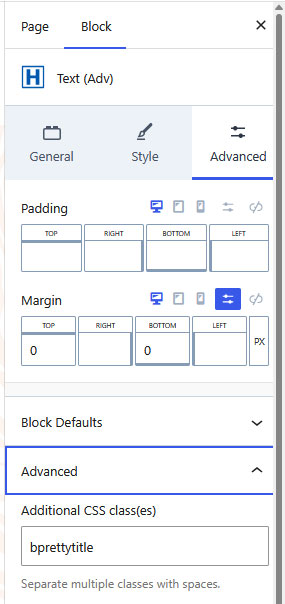
prettytitle — Palette #2 (Light Pink) bprettytitle — Palette #1 (Teal)dpprettytitle — Palette #5 (Dark Pink)
Example
How to use it
Add a Heading or Text block.
Highlight the word(s) you want underlined, then click I (Italic) in the editor.
Important: The underline effect only appears on text that has the Italic style applied.
In the Additional CSS Class(es) field, add one of the classes from the list.
Save and preview your page.
CSS Classes
Choose one of the following classes to apply different angle styles. Simply click to copy.
These underline colors are tied directly to your theme’s color palette. To change the colors sitewide, simply update Palette #1, #2, or #5 in your theme colors.
What it does
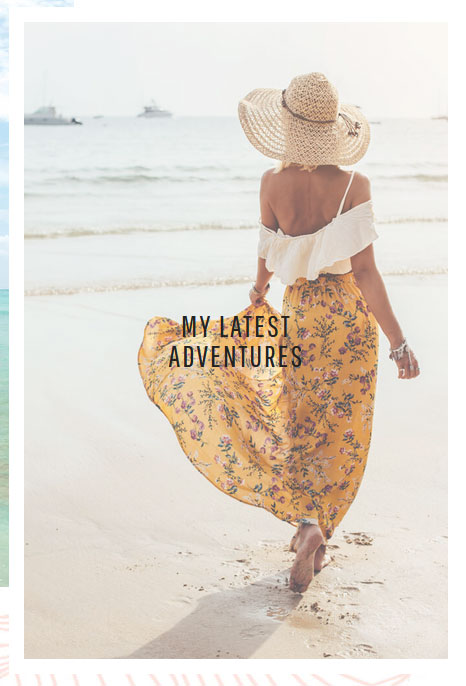
Adds a smooth zoom effect when visitors hover over an image. This effect can be applied to any Image or Advanced Gallery block.
Example
How to use it
Add an Image or Advanced Gallery block and insert your image.
Select the image, then open the Advanced tab.
In the Additional CSS Class(es) field, add the class prettyhover
Save and preview your page.
CSS Classes
Add this class to apply the accent. Simply click to copy.
Quicktip
The prettyhover effect can be combined with any of the custom image border styles. Simply add both CSS classes to the Additional CSS Class(es) field, separated by a space.
What it does
Displays a caption over an image when visitors hover over it. You can also make the caption clickable by adding a link.
Example
How to use it
Add an Advanced Image or Gallery block and insert your image.
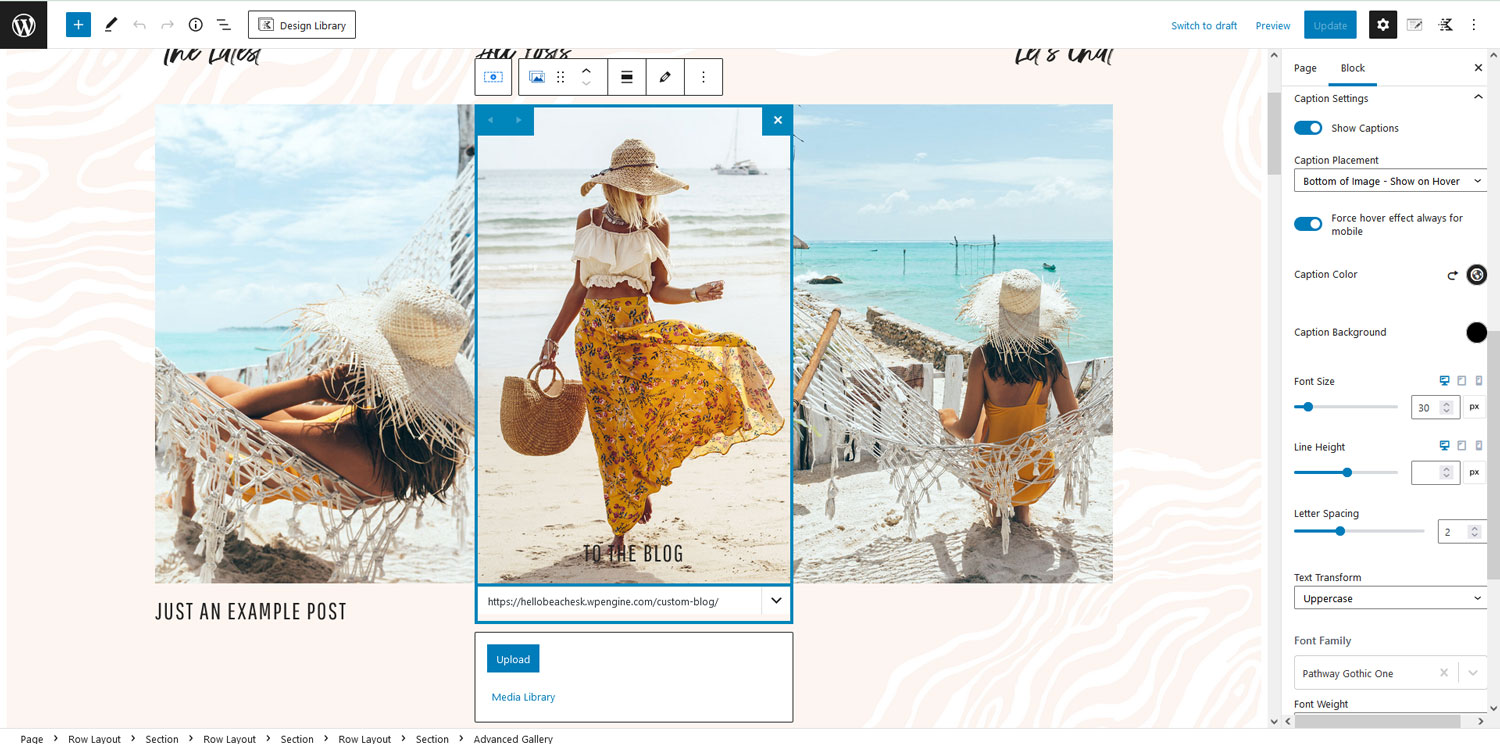
Select the image, then open the Captions tab in the editor.
Configure the caption settings:
(Optional) Enable Force Hover Effect Always for Mobile if you’d like captions to display on mobile devices.
Enable Show Captions
Set Caption Placement to Bottom Image – Show on Hover
Adjust the caption font, size, and colors to match your design. For mobile, we recommend reducing the font size to 12–14px, depending on the length of your caption.
Add your caption text in the Caption field for the image. You can also enable a link if you’d like the caption to direct visitors to another page.
Quick Tip
Hover captions work best with short, action-oriented text, such as Read More, View the Gallery, or To the Blog. Short captions are easier to read and create a cleaner hover effect.
Disable for mobile
To remove the captions on mobile so they do not show, go to the image and click on it to open the settings for that image on the right. Then open the Captions Tab and turn off “Force Hover Effect Always for Mobile”
VIDEO TUTORIAL
Learn to Use Your Block Library
Learn how to use your Block Library with confidence. This video covers browsing your library, adding blocks to your pages, editing content, moving sections, and customizing layouts to fit your website.
QUICK START
Quick Answers & Tutorials
Find quick answers to the questions we hear most often, or browse step-by-step tutorials for more detailed guidance.
Everything you need to customize
your theme from start to finish.

Popular Tutorials
Step-by-step guides
The most common tutorials our users find helpful.

Popular Questions
Quick Answers
Browse answers to the questions users ask most often.

Still need help?
We’re happy to help! If you couldn’t find the answer you’re looking for, send us a support ticket and we’ll get back to you as soon as possible.
Changelog
Follow the evolution of your theme. Every new feature, improvement, and bug fix will be documented here, so you can quickly see what’s changed.
Found an issue or have an idea for a future release? We’d love to hear from you.