Theme Documentation

Hello Dahlia

Your go-to resource for everything about your theme. Find setup guides, customization tips, and answers to common questions.

Theme Overview

Here you will find the basics to run your theme like the demo. We have also included additional details like the fonts, and demo colors.

Plugins
  • Kadence Blocks *
  • Starter Templates by Kadence Wp *
  • Clear Cache for me
  • Smashballoon Instagram
  • Woocommerce
  • WP Recipe Maker
* are required for theme function
Versions

Release Date – April 2023
Current – 2_0_0
Latest Update – 05/2025

View Changelog
Requirements

WordPress 6.3+
PHP 8.2+
Required Plugins x2

Colors
#C7DFDA
Palette 1
#F4BAA8
Palette 2
#F8D2D2
Palette 10
#000000
Palette 3
#323232
Palette 4
#4F4843
Palette 5
#C7DFDA
Palette 6
#F2EDE4
Palette 7
#F9F8F3
Palette 8
#ffffff
Palette 9
Fonts
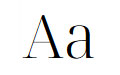
Noto Serif

Headings

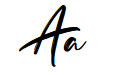
Dahlia Script

Accent

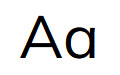
Mulish

Body

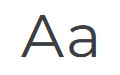
Montserrat

H5 · H6 · Buttons · Nav


Recommended

Image Guidelines

Upload images that match the aspect ratio of your layout for the best quality, performance, and responsive display.

Common Image Sizes

These are the image ratios you’ll see used throughout the demo.
1:1

Square

Perfect for categories, profile photos, & products

Recommended width:
Up to 1200px
16:9

Landscape

Ideal for hero sections, banners, and full-width images.

Recommended width:
Up to 1900px
3:4

Portrait

Perfect for featured images, blog posts, and post cards.

Recommended width:
Up to 1200px
  • Match the image to the ratio: Kadence lets you crop images to different aspect ratios, but starting with an image that’s already close to the final shape will produce the sharpest results.
  • Desktop, tablet & mobile: Images are automatically cropped on desktop, tablet, and mobile. Leave extra space around your subject for the best results.
  • Image size: Resize images before uploading. Oversized images can slow down your website.
  • Mobile hero images: If a hero image doesn’t display well on mobile, upload a separate mobile image using the responsive editor settings.

Optional Styling

Custom Styling Options

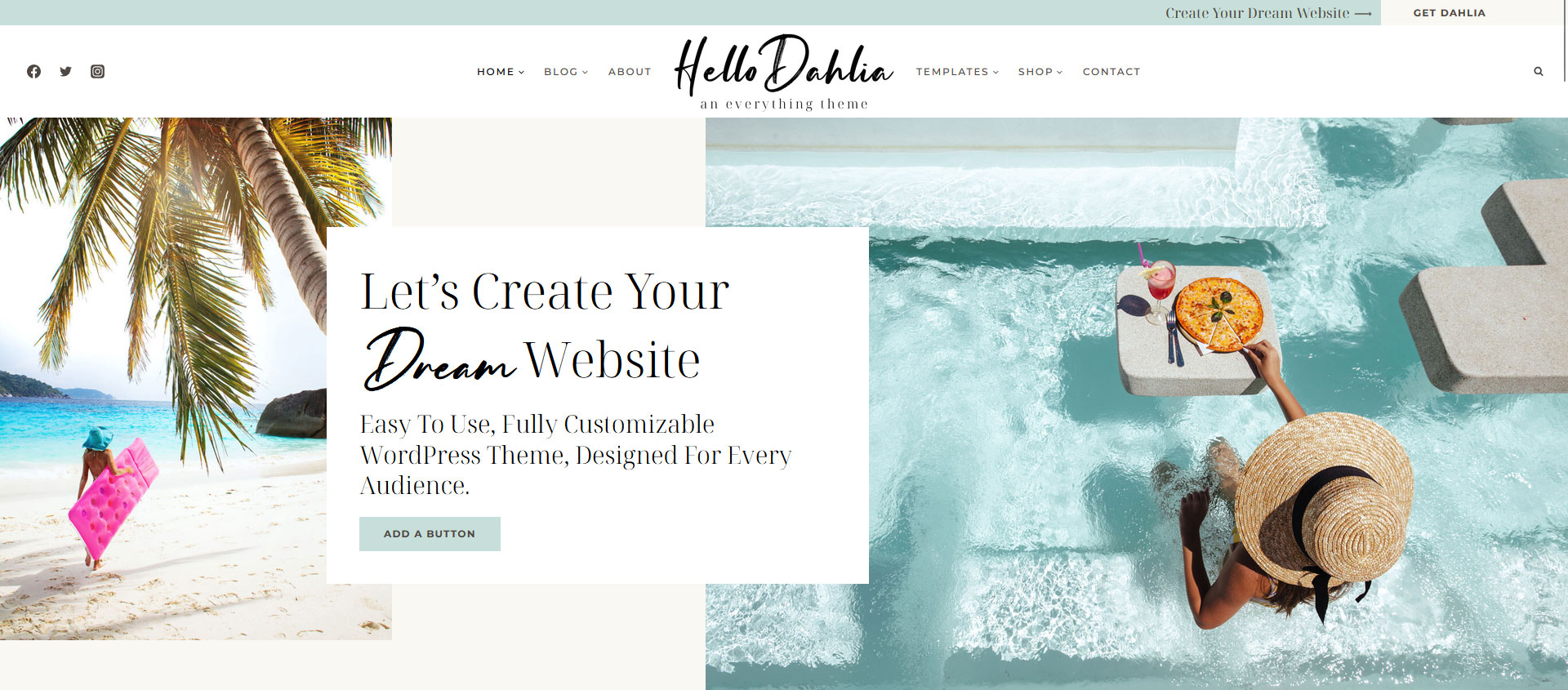
Hello Dahlia was intentionally designed to be simple. Aside from the optional Header Script Mix, everything you see in the demo can be customized using the standard Kadence controls—no extra code required.

How to use it
01

Create your heading. Then select the words you would like to be script and apply the Italic styling to those words only.

02

Your words will automatically change to script.
VIDEO TUTORIAL

Learn to Use Your Block Library

Learn how to use your Block Library with confidence. This video covers browsing your library, adding blocks to your pages, editing content, moving sections, and customizing layouts to fit your website.

QUICK START

Quick Answers & Tutorials

Find quick answers to the questions we hear most often, or browse step-by-step tutorials for more detailed guidance.

Everything you need to customize
your theme from start to finish.

Popular Tutorials

Step-by-step guides

The most common tutorials our users find helpful.

To customize your theme colors, go to Appearance → Customizer → Colors & Fonts → Colors.

Here you’ll find your Global Color Palette, where you can replace the default colors with your own brand colors. Any changes you make to the Global Palette will automatically update throughout the theme.

If you don’t like how a particular color appears on a specific page or section, you can customize that block individually. Simply edit the page and choose a different color from your Global Palette or select a custom color for that element only.

To customize your fonts, go to Appearance → Customizer → Colors & Fonts → Typography.

Here you can change your site’s global font settings, including the font family, size, weight, and style. Any changes you make here will automatically update throughout the theme.

If you’d like to use a premium or custom font that isn’t included by default, follow our Premium Font Installation Tutorial for step-by-step instructions.

To edit a page, go to Pages in your WordPress dashboard and select the page you’d like to edit. You can also click Edit Page from the WordPress admin bar while viewing that page.

Once you’re in the editor, simply click on any text, image, or block to customize the content.

For a complete walkthrough of editing pages and using the block editor, visit the Page Editing Tutorial.

While editing a page, click Design Library at the top of the editor.

Browse the available layouts and sections, then click the block you’d like to use. It will automatically be added to your page, where you can customize it just like any other block.

For a complete walkthrough of using the Design Library, visit the Design Library Tutorial.

Popular Questions

Quick Answers

Browse answers to the questions users ask most often.

To change the page that appears as your homepage, go to Settings → Reading.

Under Your homepage displays, select A static page, then choose the page you’d like to use as your homepage from the Homepage dropdown.

Click Save Changes to apply your new homepage.

The Kadence framework includes several featured image ratios, allowing you to choose the style that best fits your website.

To change the featured image ratio, go to:

Appearance → Customizer → Posts/Pages Layouts → Archive Layouts

Scroll down to the Post Item Layout section, open the Featured tab, and choose the image ratio you’d like to use for your blog archive.

Your changes will automatically update the featured images displayed throughout your blog.

Yes! You can easily use premium or custom fonts with your Hello You Designs theme.

Follow our Premium Font Tutorial for step-by-step instructions on installing and using your own fonts throughout your website.

View Tutorial →

Your theme includes two different blog pages, and each one has a different purpose.

Custom Blog
This is a fully editable page designed with the block editor. You can customize the layout, add sections, and create a unique experience for your readers. This page is typically named Journal, The Blog, or something similar.

Blog
This is WordPress’s default blog archive. It isn’t editable and automatically displays all of your blog posts.

Important: Don’t assign your Custom Blog as your WordPress Blog page. If you do, WordPress will replace your custom layout with the default blog archive.

Instead, go to Settings → Reading, assign your standard Blog page as your Posts page.

Still need help?

We’re happy to help! If you couldn’t find the answer you’re looking for, send us a support ticket and we’ll get back to you as soon as possible.
Changelog

Follow the evolution of your theme. Every new feature, improvement, and bug fix will be documented here, so you can quickly see what’s changed.

Found an issue or have an idea for a future release? We’d love to hear from you.

Importance: Low
Date: 10/2025
Added support for editing WooCommerce product pages with the WordPress Block Editor.

Updated the demo content to include Sales pages and new blocks in the library.

Importance: Low
Date: 5/2024
Added portfolio pages.

April 2023

🎉 Initial public release of Hello Dahlia